A Whole Foods Market shopping and recipe guide
Cook Excited, Shop Smarter
We’re all human. Its challenging to eat right while staying budget conscious, avoiding food waste, and managing busy schedules. Our goal is to help set you up for success and have you saving money, maximizing the groceries you buy at the store, and spending more time enjoying food, not stressing over it. We’re also passionate about preventing cooking from becoming a lost art, and growing a love and respect for the kitchen that can be shared with your loved ones.

Here’s the idea
Each Wednesday when sales refresh, you’ll get three brand new recipes that feature sale items as key ingredients, and a shopping list. We’ll give you room to deviate to fit your lifestyle, suggest a few other good deals, and in the end, save everyone time and money. And the best part, you’ll gain access to previous weeks recipe too. That means 156 unique, healthy, crave-worthy recipes throughout the year. All without pop-up ads, long blog posts, and unnecessary information. While yes, we’re here to save you money, saving your valuable time with friends and loved ones is what we’re even more proud of.
Choose your plan

Monthly membership to weekly grocery lists, recipes, and shopping/cooking tips and tricks. Invest in your health, time, and grow your savings in the process.

Annual payment option for access to our weekly shopping lists, recipes, and shopping/cooking tips and tricks.
FAQs
-
While Whole Foods once had a reputation for being a higher-end, more expensive grocery store, rising food prices nationwide have made its pricing far more competitive—especially for the level of quality it offers. As artificial methods to make food appear fresher become increasingly common, it’s harder to trust the true integrity of our ingredients. Whole Foods stands apart with a rigorous vetting process that helps ensure we’re putting truly high-quality food into our bodies. And with strong Prime member deals, shopping strategically can actually mean spending less than at many traditional grocery stores—while getting a noticeably better product.
-
Green Gathering is designed to be a guide anyone can easily adapt to their own lifestyle—from single bachelor(ette) living to feeding a house full of hungry kids. Our goal is for everyone to benefit. You know how much your family eats and which flavors they love—we don’t. That’s why we avoid prescribing rigid quantities that may not fit your household, which can lead to unnecessary food waste and wasted money (and no one wants that). Trust your instincts, experiment with ingredients, and feel confident in your kitchen. There may be a learning curve, but we promise you’ll come out the other side a more capable and empowered cook.
-
We’re realistic about cooking being more than making a meal and enjoying it, there’s dishes and cleanup involved. We do our best to curate recipes that use as minimal dishes as possible, and let you know how much time you’ll be allocating for the whole process. That way, you can plan accordingly and maximize the fun part of being in the kitchen.
If you do happen to have more time to spare, we include ways to take your dishes above and beyond. Additional marinades, extra ingredients, and savory sauce suggestions are typically included in our recipes for the nights we do have some time for some extra love.
-
You sure do - we keep a running blog of all previous recipes for additional inspiration, so you can always return to what you’ve loved. This means that even new members have access to a whole cookbook of ideas and inspiration in addition to their weekly cost-savings recipes and shopping list.
-
Our recipes are clean, macro friendly, and adaptable, because that’s how we eat too. Almost all of our recipes are centered around one protein, and we leave it up to you on how many/which carbs you want to add. We get bored eating the same meals each night, but it’s not economical to cook different meals every day - so we changed the game. Each recipe can easily be changed up by pairing leftovers with different sides, for example we’ll suggest serving over rice, or with potatoes. This leaved flexibility for you to adapt to your eating style. And while we center recipes around the proteins on sale for the week, it’s easy to swap out with vegetarian or vegan substitutes that work for you.
Get our “App”
Let’s make this even easier: you can pin your members only page as an app on your phone, for quick and easy access.
To start, head to GreenGatheringSite.com on the Safari search engine on your phone. If you’re already browsing through Google. Chrome, or another browser, hit the “share” box/arrow up by the website URL. Then select “Open in Safari”
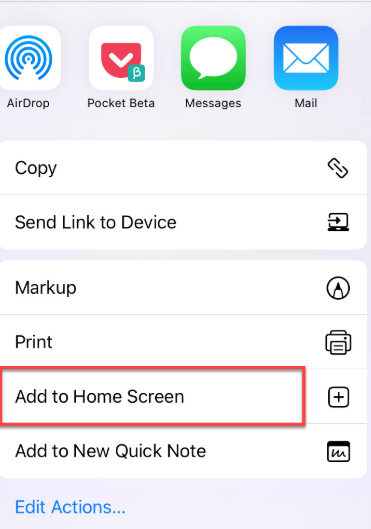
From Safari, once again, find the “share” box/arrow at the bottom of your screen, but now you will see the option “Add to Home Screen”. Title the app “coolest shopping guide ever” , click “add”, and boom, done!
Note: Android users can do this directly from Chrome with the three dot menu.
Socials